

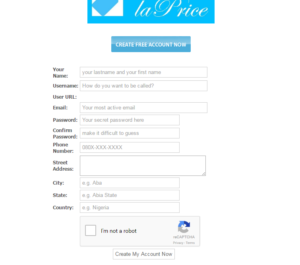
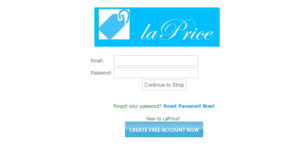
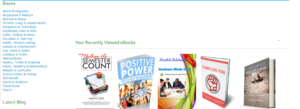
 Step 3: Select the book you want to purchase from any of the categories. In case you are purchasing more than one book, select the book you are interested in, click on “add to cart”, and then proceed to select the other ones and repeat the same process until you have selected all the books you want to purchase.
 Step 4: After step three above, go to the top right corner of the monitor, you will see your cart (something that looks like what you use when you go to shopping malls for your purchases). Click on the cart, and then it will take you to the picture you are seeing below. (See picture 1 and 2).
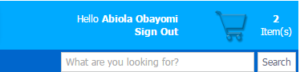
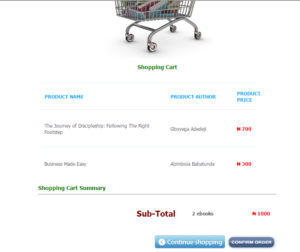 Step 5: After you are successfully done with step four, click on a link below your cart known as “confirm order”. The link would then take you to a place as displayed in the picture below.
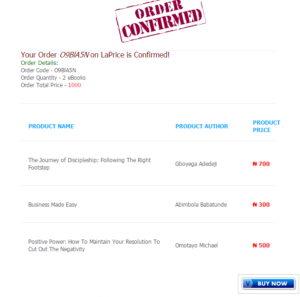 Step 6: After step five above is successfully done, click on “Buy now” link immediately under the “confirmed order” segment, and then it would take you to the place where you can enter your MasterCard details for the purchase.
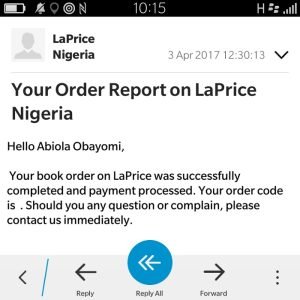
Step 7: Once your details have been entered in, a receipt of payment would be sent to your email address as evidence that you have made some purchase from www.laprice.com.ng alongside an order code. Your order code would be revealed on your receipt.
Step 6: After step five above is successfully done, click on “Buy now” link immediately under the “confirmed order” segment, and then it would take you to the place where you can enter your MasterCard details for the purchase.
Step 7: Once your details have been entered in, a receipt of payment would be sent to your email address as evidence that you have made some purchase from www.laprice.com.ng alongside an order code. Your order code would be revealed on your receipt.
 Step 8: After step seven is completed, go to your profile, and you will see a link that says “View your available downloads”. Once you clicked on that link, it would take you to where you would download as many books as you have purchased.
 This is as easy as ABC.
Was this worth your time?












Reader conversation
0 approved comments